Post actualizado el día octubre 17, 2026 by DeiviSanzPlay
Pairing an Xbox controller to your PC over Bluetooth is one of those things that sounds like a hassle until you actually do it. Then you realize it takes about 30 seconds. The catch is that not every Xbox controller has Bluetooth inside, and not every PC has a Bluetooth chip that plays nice with it. Get those two things right and you’re golden.
Does Your Xbox Controller Even Have Bluetooth?
This is where most people trip up. If you own an original Xbox One controller from 2013 to 2015, it has no Bluetooth. Period. Microsoft added Bluetooth to the Xbox One S controller in 2016, and every controller since (Xbox Series X|S included) carries it.
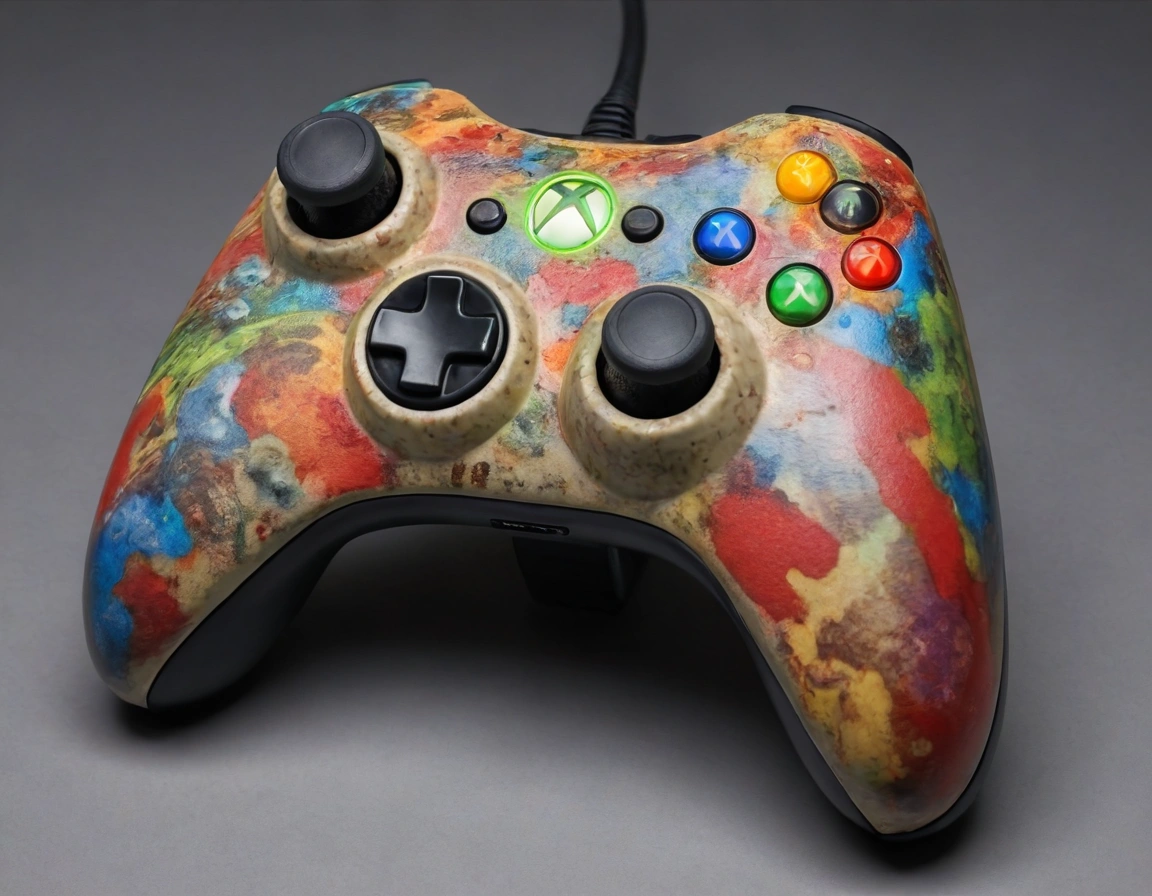
Here’s the fastest way to tell them apart: look at the plastic around the Xbox button. On Bluetooth-compatible models, that top section is a separate piece of plastic that also houses the Menu and View buttons. On older models, it’s all one smooth piece. That’s it. No serial numbers, no apps, just your eyes.
If you’re still unsure, Microsoft’s official controller compatibility page has photos that make it obvious. Worth a 10-second check before you start pressing buttons like a maniac.
What Your PC Actually Needs for a Bluetooth Xbox Controller Connection
On the PC side, you need a Bluetooth adapter that supports Bluetooth 4.0 or higher. Most laptops from the last 6-7 years have this built in. Desktops usually don’t, which means grabbing a cheap USB dongle from Amazon for under $15.
Skip the Bluetooth 2.1 dongles collecting dust in a drawer. Latency on those is awful for gaming, and Windows 11 sometimes won’t even recognize them properly. Bluetooth 5.0 adapters are the sweet spot right now.
To check what you have: right-click Start, open Device Manager, expand Bluetooth, and look at the adapter name. If nothing shows up there, you don’t have Bluetooth. Simple as that.
Step-by-Step: Pairing Xbox Controller to Windows 10 or 11
The process is nearly identical on both operating systems, so this works either way.
- Turn on the controller by holding the Xbox button until it lights up.
- Press and hold the small sync button on top of the controller (next to the USB port) for about 3 seconds. The Xbox light starts flashing rapidly — that’s pairing mode.
- On your PC, hit Windows + I to open Settings, then go to Bluetooth & devices.
- Make sure Bluetooth is toggled on, then click Add device → Bluetooth.
- Wait a few seconds. «Xbox Wireless Controller» pops up. Click it.
The light on the controller goes solid. Done. Windows installs the Xbox controller driver automatically in the background — no downloads needed.
Xbox Controller Not Connecting via Bluetooth? Try These Fixes
Nine times out of ten, the fix is embarrassingly simple. Here’s the order I’d try things in:
- Restart both devices. Turn the controller off, toggle Bluetooth off and back on in Windows, repair.
- Update the Bluetooth driver. Device Manager → Bluetooth → right-click your adapter → Update driver → Search automatically.
- Check for interference. Bluetooth runs on 2.4 GHz, same as Wi-Fi, microwaves, and cheap wireless mice. Move the controller closer to the PC or unplug other 2.4 GHz devices.
- Remove and re-add the device. Sometimes Windows remembers a bad pairing. Delete «Xbox Wireless Controller» from Bluetooth settings and start fresh.
If latency still feels garbage after all this, the problem is likely your Bluetooth chip, not the controller. That’s when you consider the alternative below.
Bluetooth vs. Xbox Wireless Adapter: Which One Should You Use?
I’ll be blunt: for serious gaming, Bluetooth is the compromise option. Microsoft’s official Xbox Wireless Adapter uses a proprietary 2.4 GHz protocol built specifically for low-latency controller input. It also supports up to 8 controllers at once, plus audio passthrough for headsets plugged into the controller.
Bluetooth is fine for casual play. If you’re doing anything competitive — Rocket League, Halo, fighting games — the adapter is worth the ~$25.
The trade-off is that the adapter occupies a USB port and only works on Windows. Bluetooth works on anything. Your call.
Testing Your Xbox Controller on PC Before You Launch a Game
Don’t jump straight into a game hoping everything works. Test it first.
Search «Set up USB game controllers» in the Start menu and open the tool. Select «Xbox Wireless Controller» and hit Properties. You’ll see a live test screen where every button press, trigger pull, and stick movement shows up. If something’s dead or drifting, you’ll know in 10 seconds instead of mid-match.
Modern games on Steam, Epic, and Xbox Game Pass detect Xbox controllers natively — button prompts show up as A, B, X, Y automatically. Steam’s Big Picture mode also lets you remap everything if a game doesn’t cooperate.
Frequently Asked Questions
Why won’t my Xbox One controller show up in Bluetooth?
Either it’s a pre-2016 model without Bluetooth, or your PC’s adapter is too old. Verify the controller model first — that’s the most common cause by far.
Can I just use a USB cable instead?
Yes, and honestly it’s the most reliable option. Plug in a micro-USB or USB-C cable (depending on the controller revision) and Windows recognizes it instantly. No pairing, no interference, no battery drain.
Does the Xbox controller work with every PC game?
Almost every modern game with controller support, yes. Really old titles or emulators might need manual mapping through Steam Input or DS4Windows, but that’s an edge case.
How many Xbox controllers can I connect to one PC?
Over Bluetooth, typically just one reliably. With the official Xbox Wireless Adapter, up to eight.
Bottom line: check your controller model, make sure your Bluetooth adapter isn’t a relic, and the whole thing takes under a minute. If it doesn’t, the adapter is the answer.