Post actualizado el día octubre 17, 2026 by DeiviSanzPlay
Forget about picking up your phone every two minutes. You can use WhatsApp on your computer without touching your phone, and I’m going to tell you exactly how I did it, without geeky jargon and without downloading anything shady.
I used to think that opening WhatsApp Web was just scanning a QR code and that’s it. But there’s a whole world of tricks to make it faster, safer, and truly independent. Here I’m spilling everything, including how to keep it synced even if your phone is in another room.
Why using WhatsApp on PC is more than just opening a webpage
Let’s be honest: the browser version is fine for a quick fix, but if you spend hours in front of the computer, you need something more solid. Using WhatsApp on your computer the right way means you stop depending on your phone for every little thing.
The key is in the official WhatsApp desktop app. You can download it from whatsapp.com/download and it works on Windows and Mac. It’s not a browser tab, it’s a real application that runs smoother, shows notifications natively, and doesn’t disconnect every time you close the browser.
But if you don’t want to install anything, you can still use WhatsApp Web. Just make sure you use a compatible browser like Chrome, Edge, or Firefox. Forget about ancient browsers that make everything slow and unstable.
Step by step: how to link your phone and never touch it again
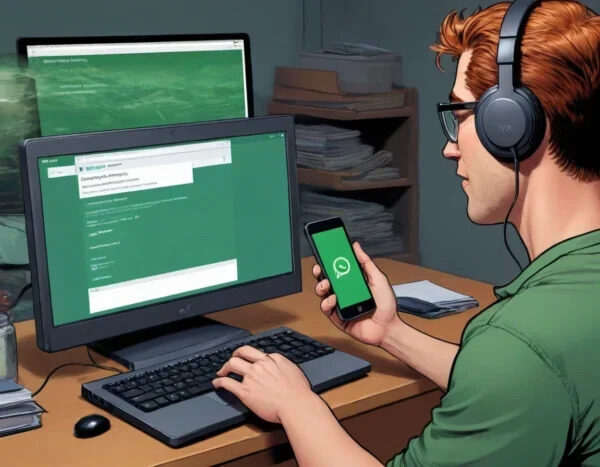
The linking process is the same as always: go to web.whatsapp.com, scan the QR code with your phone, and boom, you’re in. But here’s the trick that many people miss: once linked, you can keep your phone on the charger in another room and still send and receive messages from your PC.
The only requirement is that your phone stays connected to the internet. If it runs out of battery or loses Wi-Fi, the sync stops. So plug it in and forget about it.
If you want to go further, you can create a desktop shortcut for WhatsApp Web. In Chrome: menu > More tools > Create shortcut. That way it opens like an app, with its own icon, and you don’t have to search through tabs.
Tip: if you use the desktop app, you can enable startup on system boot. So every time you turn on your PC, WhatsApp is ready without you lifting a finger.
Real advantages you notice from day one
The first thing you notice is speed. Typing on a physical keyboard is a thousand times faster than on a touchscreen. You can reply to long messages, copy and paste text, send files by dragging and dropping… it’s a different experience.
Also, your phone’s battery thanks you. If you use WhatsApp on your computer, you stop unlocking your phone every time a notification arrives. That’s less screen time, less battery drain, and fewer distractions.
And let’s not forget notifications. In the desktop app, they appear natively, with sound and everything. In the browser, you can enable them too, but sometimes they fail. The app is more reliable.
Can you really use WhatsApp without a phone?
This is where things get interesting. Officially, WhatsApp requires a phone number to activate your account. But there are ways to use it on a computer without having your phone nearby, as long as you’ve linked it before.
There are even tricks with emulators or secondary numbers, but I don’t recommend them. They’re risky, they can get your account banned, and they’re not necessary for 99% of people. Your phone just needs to be on and connected. That’s it.
If you want to check the official info, the WhatsApp FAQ has everything: faq.whatsapp.com. There they explain how linked devices work and what limitations exist.
Common mistakes when using WhatsApp on PC
The most common mistake is using a slow or outdated browser. If WhatsApp Web takes forever to load or disconnects, it’s not WhatsApp’s fault, it’s your browser. Switch to Chrome or Edge and you’ll notice the change.
Another mistake is not keeping your phone updated. The WhatsApp app on your phone needs to be up to date for the linked device feature to work well. If you have an old version, you’ll run into sync problems.
And finally: don’t close the session on your phone. If you log out of WhatsApp on your phone, you’ll also log out on your computer. Keep it simple: link once and forget.
My experience after months of using WhatsApp only on PC
I’ve been using WhatsApp on my computer as my main tool for months. I only pick up my phone to make calls or when I leave the house. At my desk, everything goes through the desktop app.
I save time, I’m more focused, and I don’t get lost in the infinite scroll of the phone. If you work from home or study online, this change is a game-changer.
And no, you don’t need to be a hacker. You just need to follow the steps and use the official tools. The rest is just getting used to it.
So now you know: you can use WhatsApp on your computer without touching your phone, safely and officially. Try it and tell me how it goes.