

Post actualizado el día September 27, 2026 by DeiviSanzPlay
Hey, tech buddies and avid readers 👀📚
Have you gotten the blessed error Kindle E999 right when you wanted to read that book you’d been waiting for? 😩📲
Relax, I’m going to tell you everything you need to know from A to Z to fix this big problem without breaking your Kindle or your brain 😂
I recommend you check out this interesting article: How to cite ChatGPT correctly: A practical and simple guide.
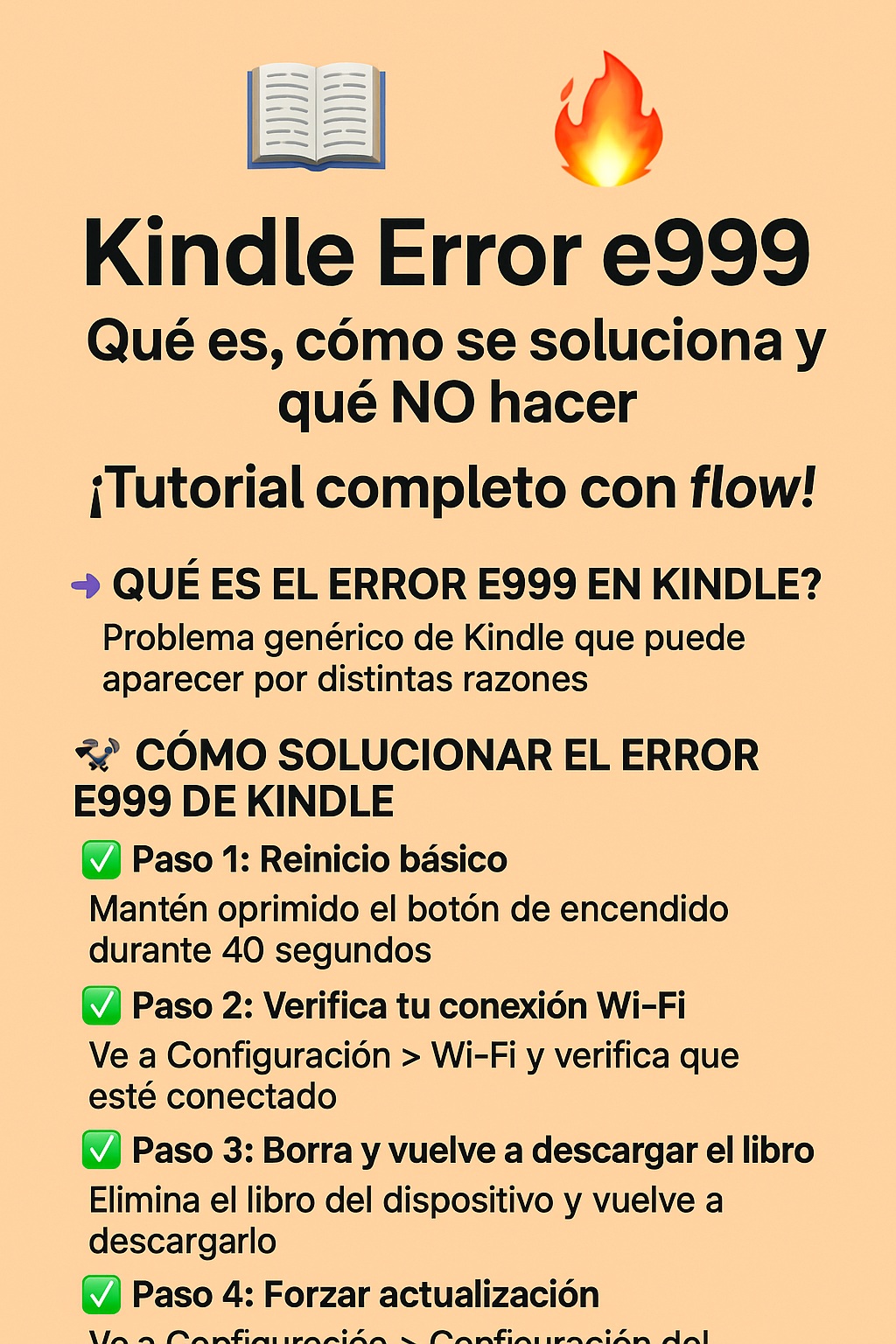
👉 What is the E999 Error on Kindle?
First things first. The famous Error E999 is a <a href=”https://www.chusmeando.com/informatica-y-tecnologia/por-que-hay-problems-con-spotify-reportados-hoy/” title=”Why were problems with Spotify reported today?”>problem generic Kindle error that can appear for different reasons, but basically it means: “Houston, we have a problem… and we don’t know which one.” 🧠💥
This error usually appears in these cases:
- 📡 When there are connection problems with the internet.
- 📦 When downloading books from Amazon’s cloud.
- 🔄 After a failed system update.
- 🧹 Corrupted files or synchronization problems.
Yes, it’s annoying. Yes, it happens often. But yes, it has a solution.
🛠️ How to fix the Kindle E999 error? (Step by step)
✅ Step 1: Basic restart
- Hold down the power button for 40 seconds, even if it turns off before that.
- When you see the Kindle logo, let go.
- Wait for it to restart and try opening the book again.
📌 This step fixes 60% of cases, trust me.
✅ Step 2: Check your Wi-Fi connection
- Go to Settings > Wi-Fi and make sure you’re connected to the internet.
- Try opening anything else that needs a connection.
- If it doesn’t connect, restart your router.
👉 Golden tip: Avoid public Wi-Fi networks that have restrictions or firewalls.
✅ Step 3: Delete and re-download the book
- Press and hold the book that’s giving you the error.
- Tap Remove from device.
- Then, go to your library and tap the download icon again.
🔗 If the book was purchased on Amazon, you can download it again for free from your account. Manage content on Amazon
✅ Step 4: Force an update
- Go to Settings > Menu (⋮) > Device Settings > Update Kindle.
- If it’s grayed out, your Kindle is already up to date.
- If you can tap it, update and then restart afterward.
🧠 NOTE: Some updates can take several minutes.
✅ Step 5: Reset to factory settings (only if nothing else worked)
⚠️ Warning: This deletes EVERYTHING on the Kindle, so make a backup if you can.
- Settings > Menu > Reset device
- Confirm and wait for it to finish.
After that, sign in again and download your books from your account.
Pros and cons of each method
| Method | Pros | Cons |
|---|---|---|
| Restart | Quick and easy | Doesn’t work for more serious errors |
| Check Wi-Fi | Fixes network problems | Can be confusing if you use shared networks |
| Delete/Download | Fixes corrupted files | You have to wait for the download again |
| Update | Keeps Kindle up to date | Not always immediately available |
| Reset | Fixes almost everything | Deletes everything, you start from scratch |
🤔 What if it doesn’t get fixed?
- You can contact official Amazon support here.
- If your Kindle is less than 1 year old, it may still be under warranty.
- You can also use the Kindle app for PC or mobile in the meantime:
Download Kindle App
🧠 Expert reader tip
If you usually load books in .mobi or .epub format from external sources, use Calibre (a little gem). Convert the files properly and save yourself errors:
Calibre eBook Manager
💬 In summary:
- The E999 error on Kindle is annoying, but not the end of the world.
- It can be fixed at home without being a technician.
- There are several methods you can try, from the simplest to the most drastic.
- Take a deep breath and follow the steps, your digital library will thank you. 🙌📖
Did it help you? Share it with someone who’s also struggling with their Kindle 🔄
And if you have any other tricks, leave them in the comments ✍️🔥



