

Post actualizado el día September 28, 2026 by DeiviSanzPlay
Have you ever been left without a WiFi connection at home and can’t remember the password? Or maybe your signal is slower than usual and you don’t know why. If you’re looking for how to <a href="https://www.chusmeando.com/informatica-y-tecnologia/como-ver-las-contrasenas-wifi-para-recuperar-tus-claves/” title=”How to View WiFi Passwords to Recover Your Keys”>decrypt WiFi passwords or simply <a href="https://www.chusmeando.com/informatica-y-tecnologia/todo-sobre-contrasenas-wifi-como-proteger-y-optimize-tu-conexion/” title=”Everything About WiFi Passwords: How to Protect and Optimize Your Connection”>optimize your connection, this article is for you. Today I’m going to show you some useful tricks to solve both problems quickly and efficiently.
I recommend checking out this interesting article: How to install CapCut on Windows 11.
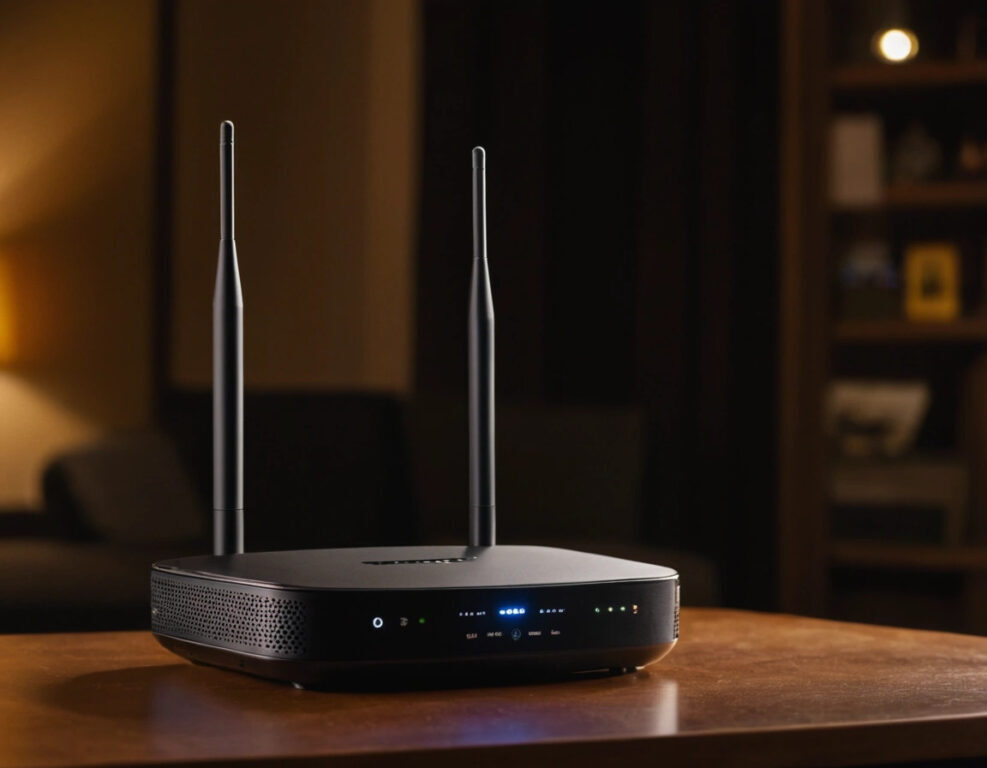
Let’s start with the basics: how to recover your WiFi password if you’ve forgotten it. If you have a <a href="https://www.chusmeando.com/informatica-y-tecnologia/router-5g-con-sim-para-internet-en-cualquier-lugar-descubre-modelos-precios-y-cobertura-real/” title=”5G WiFi Router with SIM: Speed Without Limits”>WiFi router at home and you’ve forgotten the password, don’t worry, there are several ways to solve it without having to reset the router and lose all your settings. The easiest way is to access the router’s administration panel. To do this, open your web browser and enter the router’s IP address. This is usually something like 192.168.1.1 or 192.168.0.1, although it depends on the model. Once inside, you’ll only need your username and password (which is often “admin” for both, unless you’ve changed it).
Once you access the panel, look for the section that says WiFi or wireless network. There you’ll find the option to view your network’s current password. If you can’t access the router or if you don’t remember the credentials, you may need to look for the default password that comes on your router’s label. If you don’t have that information either, resetting the router to its factory settings is an option, but keep in mind that you’ll lose all your custom settings.
Now, once you have your WiFi password back, it’s time to optimize your connection. Your WiFi connection speed can be affected by several factors, from the location of your router to the number of <a href="https://www.chusmeando.com/informatica-y-tecnologia/seguridad-vpn/como-configurar-una-vpn-correctamente-en-todos-tus-devices/” title=”How to properly configure a VPN on all your devices?”>devices <a href="https://www.chusmeando.com/alarmas-y-videovigilancia/como-impacta-el-5g-en-los-sistemas-de-seguridad-connected/” title=”How does 5G impact connected security systems?”>connected to your network. Did you know that older WiFi routers can be slow and not offer you the speed you need to do activities like watching streaming videos or playing online? If your router is old, it may be time to consider a new generation router that’s faster and more efficient.
One of the easiest ways to improve your WiFi signal is to make sure the router is in a suitable place. Avoid placing it on the floor or in enclosed spaces. The router should be in a central, elevated location free of obstacles. Walls and other solid objects can block the signal, which will decrease your wireless internet speed.
It’s also advisable to change your WiFi channel if you live in an area with many nearby wireless networks. WiFi routers use channels to transmit the signal, and if there are many networks using the same channel, your signal can become slower. Changing your wireless network’s channel to a less congested one can significantly improve your connection speed.
Another way to optimize your WiFi is to make sure there’s no electronic interference near your router. Appliances like microwaves, cordless phones, or Bluetooth devices can affect your WiFi signal quality. Make sure your router is away from these appliances to reduce interference.
If despite all this your connection is still slow, you can try a WiFi network extender or a WiFi repeater. These devices extend the range of your wireless network and help you bring the signal to areas of your home where it didn’t reach before. They’re ideal if you have a large house or if thick walls make signal propagation difficult.
And if what you need is a more drastic change, you can consider a Mesh WiFi system. These systems allow you to create a mesh network that covers your entire home with a strong and stable signal. It’s perfect if you live in a large house or in a place with many obstacles.
If you’re one of those people who’s always wondering how to decrypt WiFi passwords from nearby networks, keep in mind that doing so without permission is illegal. It’s not a good practice to try to access other people’s WiFi networks, as this can lead to legal problems. The best thing is to make sure your own WiFi network is protected with a strong password to prevent unauthorized people from connecting.
To protect your WiFi network, use a long and complicated password, preferably with a combination of letters, numbers, and symbols. Also, make sure your network is encrypted using WPA3, the most recent security protocol. If your router doesn’t support WPA3, WPA2 is also a secure option.
Finally, another option to improve your WiFi connection is to check the number of connected devices on your network. If there are too many devices using your network at the same time, this can slow down the connection. If you have several connected devices, try disconnecting those you’re not currently using to free up bandwidth.
In summary, knowing how to decrypt WiFi passwords is only part of the process. Once you have your password, there are several steps you can follow to optimize your WiFi connection and make sure you get the best possible speed. From changing your router’s location to using a WiFi network extender or a Mesh WiFi system, there are many ways to improve your browsing experience. Just remember to protect your network with a secure password and avoid unauthorized use of other people’s networks.



