

Post actualizado el día September 27, 2026 by DeiviSanzPlay
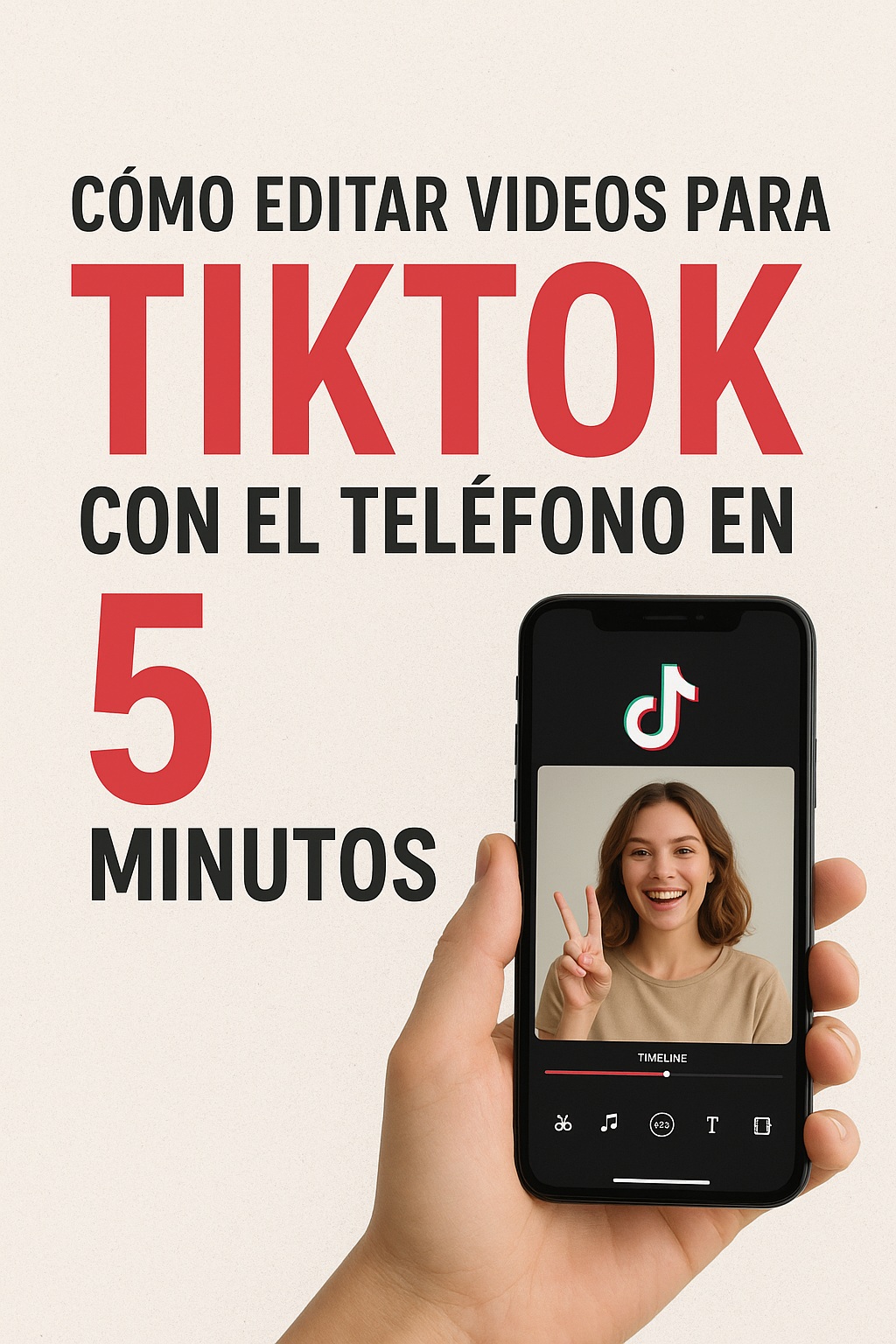
How to Edit Videos for TikTok FAST? Master CapCut for FREE 📲 Professional Tricks, Viral Effects, and Perfect Audio!
I recommend reading this interesting article: Folivores are commonly known as sloths.
In the frenetic world of social media, TikTok has established itself as the king of short-form content and engagement. For many, the idea of editing videos may sound overwhelming, requiring expensive equipment and endless hours in front of a computer. But the reality is completely different. Today, the power to create viral content is literally in your pocket.
This article is not born from the experience of a “guru,” but from observing the trends and tutorials of successful creators who share their knowledge on the platform itself. Editing for TikTok has become so democratized that, with the right technique and the right tools, anyone can produce high-quality videos in a matter of minutes. Below, we show you how to achieve it.
Why mastering fast editing for TikTok is crucial
TikTok’s algorithm favors consistency and relevance. Posting frequently while maintaining quality significantly increases the chances of your content being shown to more people. If you spend three hours editing a single video, it will be impossible to maintain a steady pace.
Learning to edit quickly frees you from that burden. It allows you to react to trends in the moment, duet with viral videos quickly, and keep your audience always entertained with new content. Modern mobile tools are designed for this immediacy, offering professional results without the learning curve of complex software. The key is knowing efficient workflows.
The best apps for editing TikTok videos on mobile
You don’t need a single app to do everything. The strategy of many creators consists of using a main application and complementing it with others specialized for specific effects. The <a href="https://www.chusmeando.com/informatica-y-tecnologia/aprende-a-ver-guardar-descargar-sin-marca-de-agua-o-eliminar-borradores-en-tiktok-solucion-al-error-no-se-pudieron-cargar-los-borradores/” title=”🤖 TikTok saves ALL your drafts (Even if you DON’T upload them!)”>TikTok App itself includes a surprisingly powerful editor, but sometimes you need more control.
CapCut, developed by ByteDance (TikTok’s parent company), is perhaps the most popular and versatile option. Its integration with the platform is seamless: you can import sounds directly from TikTok and export with the ideal settings for the network. Adobe Premiere Rush offers a more traditional multi-layer editing experience, ideal if you’re looking for a smooth transition to more advanced editing. InShot is another favorite for its simplicity and its features specifically for social media, such as the ability to add colored backgrounds for vertical format. The best approach is to try several and stick with the one that feels most intuitive to you.
You can download these applications safely from the official stores: Google Play Store for Android or App Store for iOS.
Preparing your material: the secret to editing fast
This is possibly the most important step. The 5 minutes of editing begin before you open the editing app. Having everything organized is what will allow you to be fast. Many creators record multiple short takes (clips of 3-5 seconds) from different angles or with different actions. This makes the selection and assembly process much more dynamic.
If you plan to use a trending audio, record yourself already listening to it with headphones to maintain synchronization. Prepare any image, screenshot, or GIF you want to include and keep them saved in an easily accessible folder in your gallery. This pre-production phase, which takes no more than a minute, eliminates the dreaded “blank screen” and the wasted time searching for assets while the editing app’s timer is running.
How to edit videos for TikTok on your phone using CapCut
Let’s simulate a 5-minute workflow using CapCut as an example, for its popularity and efficiency.
Minute 1: Basic assembly. Open the app and create a new project. Select all the clips you recorded in the approximate order you want them to appear. Drag them to the timeline. Use the “trim” function to remove the beginning and end of each clip, keeping only the useful part. Focus only on the structure, not the details.
Minute 2: Audio and rhythm. Go to the “Audio” tab and add the song or TikTok sound you’ve chosen. With the audio track in place, adjust your video cuts so that scene changes coincide with the music’s beats or melody changes. This synchronization is essential for the video to be satisfying to watch.
Minute 3: Text and transition effects. Add brief, legible text to reinforce your message. Use CapCut’s animated templates to save time. Then, at the points where the scene changes, apply a quick transition (like “fade” or “dissolve”). Don’t overdo it; a simple, well-placed transition is better than five extravagant effects.
Minute 4: Final adjustments and review. Slightly adjust the brightness, contrast, and saturation if the video needs it. Add a subtle filter if it contributes to the aesthetic. Play the entire video to make sure there are no errors, that the audio sounds good, and that the pacing is brisk.
Minute 5: Export and publish. Tap the export button. Make sure the resolution is at maximum (1080p) and the frame rate is at 30fps for a perfect balance between quality and file size. CapCut will let you share it directly to TikTok, automatically copying the video to your clipboard to paste it into the app.
Editing shortcuts every creator should know
Beyond the basic workflow, there are tricks that accelerate the process enormously. Using gesture shortcuts, such as pinching to zoom in on the timeline to make more precise cuts, is vital. Many apps allow you to copy and paste attributes (such as a text style or a color effect) between different clips, saving you from having to reconfigure everything manually.
Saving your “presets” is another game-changer. If you find a combination of filter, color adjustment, and text style that you like, save it as a custom template. Next time, you can apply it to your new project with a single click, maintaining a consistent identity on your channel and saving valuable minutes of configuration.
Common mistakes when editing videos for TikTok fast (and how to avoid them)
Rushing can lead to oversights that affect the final quality. The most common mistake is forgetting to review the video with sound on and headphones. Audio that peaks, is too low, or is not properly synchronized completely ruins the experience. Always, always review with audio.
Another common mistake is overloading with effects. Using too many flashing texts, spinning transitions, and heavy filters makes the video look amateurish and tiring to the eye. The principle of “less is more” is key on TikTok. The platform rewards authenticity and clarity. Focus on a clear message, a good rhythm, and impeccable audio quality. That is much more effective than ten different effects.
Check out the quick questions and answers.
FAQ: Frequently Asked Questions about how to edit videos for TikTok
What is the best free app to edit TikTok videos without a watermark?
CapCut is completely free and does not add a watermark to your exports, unlike many other apps. It offers all the features needed to create professional content directly from your phone.
How can you edit videos for TikTok with your phone for absolute beginners?
The key is to start with the TikTok app itself. Use its built-in editor to trim clips, add trending sounds, and simple texts. It is the least overwhelming way to begin. Then, when you feel comfortable, you can make the leap to an app like CapCut to explore more advanced features.
What are the ideal export formats so that TikTok videos don’t look pixelated?
You should always export at the highest available resolution. For TikTok, that is 1080p (Full HD) at 30 frames per second (fps). This setting offers the best balance between visual quality and file size, ensuring that TikTok’s compression doesn’t degrade your video too much.
Is it possible to edit videos for TikTok in 5 minutes without losing professional quality?
Absolutely yes. Professional quality doesn’t depend on the time invested, but on applying the right principles: good audio, decent lighting, editing to the rhythm of the music, and a clear narrative. With practice, you can execute these principles in a 5-minute workflow and get results that look perfectly polished and engaging.
How do you make smooth transitions and special effects with mobile apps?
Most modern editing applications include preset transition features that you can drag and drop between your clips. For smooth transitions, the most effective ones are usually the simplest: fade to black, dissolve, or fade. For more advanced special effects, such as green screen or motion tracking, apps like CapCut or KineMaster offer these tools in an accessible way. The trick is to use them in moderation and always in service of the story you want to tell, not as an end in themselves. You can find official tutorials on the CapCut YouTube channel, where they explain the step-by-step process for each effect.
Can you schedule a post for TikTok directly from the editor?
Not directly from third-party editors like CapCut or InShot. The standard process is to export the final video to your phone’s gallery and then open the TikTok app to upload it. However, within the TikTok app, once you have selected the video and reached the publishing screen, there is an option to schedule it. Look for the “Publish” button and hold it down; this will take you to an option to “Schedule post,” where you can choose the exact date and time you want it to be uploaded. This feature is invaluable for maintaining consistency in your content calendar.
Conclusion: Practice makes perfect
Editing attractive videos for TikTok in just five minutes is not a magic trick; it is the result of an optimized process. Start by mastering a single application, organizing your material in advance, and applying the basic principles of rhythm and audio. Over time, what initially took you five minutes will be reduced to three, and the quality of your videos will improve exponentially.
The most important thing is not to obsess over perfection. On TikTok, authenticity and engagement usually matter more than impeccable production. So grab your phone, record some clips, and put these tips into practice. Your next post could be your first viral video.
Disclaimer: This article is based on observations of trends, public creator tutorials, and official documentation from the mentioned applications. Individual results may vary, and it is always recommended to review the usage policies and terms of service of each application.



