

Post actualizado el día September 28, 2026 by DeiviSanzPlay
Is your computer running Windows 10 slower than you’d like? One of the most common problems that slows down your PC is a hard drive full of unnecessary files. If you want to improve performance and free up space on your machine, cleaning your hard drive is the first step to achieving that. Fortunately, there are several tools and simple methods you can use to optimize hard drive performance in Windows 10. Here I’ll explain how to do it.
I recommend checking out this interesting article: How to Choose Plants for Your Home Decor.
The first step is to delete the unnecessary files that accumulate on your computer over time. One of the most effective methods to free up hard drive space in Windows 10 is to use the built-in tool called Disk Cleanup. This tool is designed to delete temporary files, system files, and other non-essential files that only take up space on your machine. To access it, just right-click on This PC, select properties and then click on Free up space. You’ll see a list of files you can delete, such as temporary Internet files, system files, and program files you no longer use. This process not only helps free up storage in Windows 10, but also improves your PC’s speed.
Another important step to clean your hard drive is to delete temporary files. These files are generated while you browse the Internet or use certain applications. They often accumulate without you realizing it, taking up unnecessary space. To delete them, you can go to Disk Cleanup and select the temporary files option, or you can also press Windows + R, type %temp% and delete all the files you find.
If your computer is full of programs you no longer use, uninstalling them can be an excellent way to free up space on your drive. To do this, open the Control Panel, select Programs and click on uninstall a program. Here you’ll see a list of all the applications installed on your machine. Remove the ones you don’t need to free up additional space.
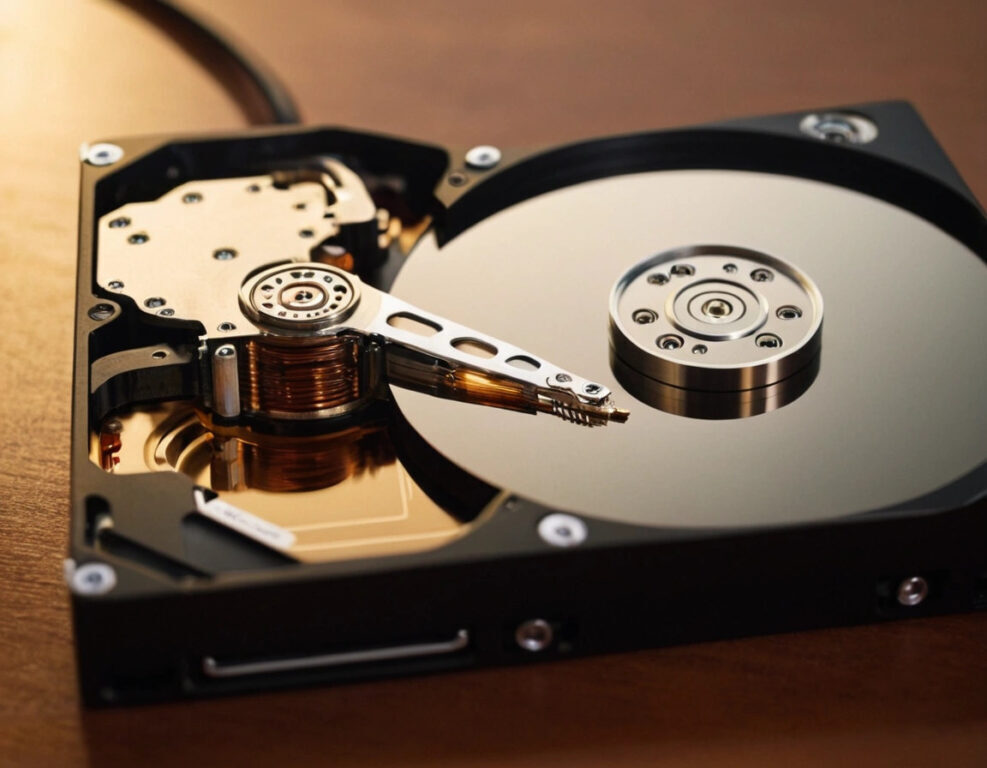
In addition to deleting unnecessary files, another recommended practice to keep your PC running optimally is to defragment the hard drive. Although SSD drives don’t require defragmentation, if you use a mechanical hard drive (HDD), defragmentation can help your computer access files faster. To do this, go to This PC, right-click on the drive you want to optimize, select Properties, then go to the Tools tab and click on Optimize.
If you want to do a deeper and more detailed cleanup, third-party tools like CCleaner can be very useful. This program not only deletes temporary files and junk on your PC, but also helps you uninstall unnecessary programs and clean the Windows registry. It’s an excellent tool for keeping your computer running efficiently and quickly.
For those who want a complete cleanup, it’s advisable to do a regular check of your hard drive. In addition to deleting unnecessary files, make sure the operating system is up to date, since Windows 10 updates can improve your PC’s overall performance and fix errors that may be affecting its speed.
In summary, cleaning your hard drive in Windows 10 is an excellent way to improve performance and free up space. By using the system’s built-in tools, such as Disk Cleanup, and practicing habits like deleting temporary files and uninstalling unnecessary programs, you can make your PC run faster and more efficiently. Additionally, third-party tools like CCleaner will help you perform a more thorough cleanup. Don’t forget to defragment the hard drive and do a regular cleanup to keep your machine in its best condition. With these steps, you’ll be able to enjoy a faster computer, with greater storage capacity and, most importantly, with optimized performance.



