Post actualizado el día octubre 25, 2026 by DeiviSanzPlay
If you have a child with a mobile phone, you know that things can get out of hand in a matter of minutes. Google Family Link is Google’s free parental control tool with Google Family Link, and in 2026 it’s still the most straightforward option if the device is Android or even iPhone. It’s not perfect, but it gives you a level of control that many paid apps would envy.
How to set up Google Family Link without losing your patience
The first thing you need is a Google account for your child. If they’re under 13 (or the minimum age required in your country), you’ll have to create it from your own device through the Family Link app. The process is simple: you download the app on your phone, tap «Create account for a child,» and follow the steps.
Once it’s created, install Family Link on the child’s device. That’s where the permission dance begins: location access, notifications, device administration… If you don’t accept them all, things won’t work properly. On Android it’s more comprehensive because you can block the entire device; on iOS the limitations are greater and you depend on the app for many things.
Heads up: if your child already has a Google account and is over 13, you won’t be able to link it to Family Link. You’ll have to create a new supervised account and migrate the data. It’s a pain, but that’s how it is.
Google Family Link features that actually get used
Beyond the marketing, Google Family Link’s features are diverse and very useful for parents who want to know what’s happening on their child’s phone. These are the ones people use on a daily basis:
- Time limits with Google Family Link: you can set a bedtime and a daily limit. When it runs out, the device locks. Of course, the child can request more time and you decide whether to give it.
- Monitor device usage with Google Family Link: you see which apps they use and how much time they spend on each one. If you notice they’re spending 3 hours on TikTok, you’ll know.
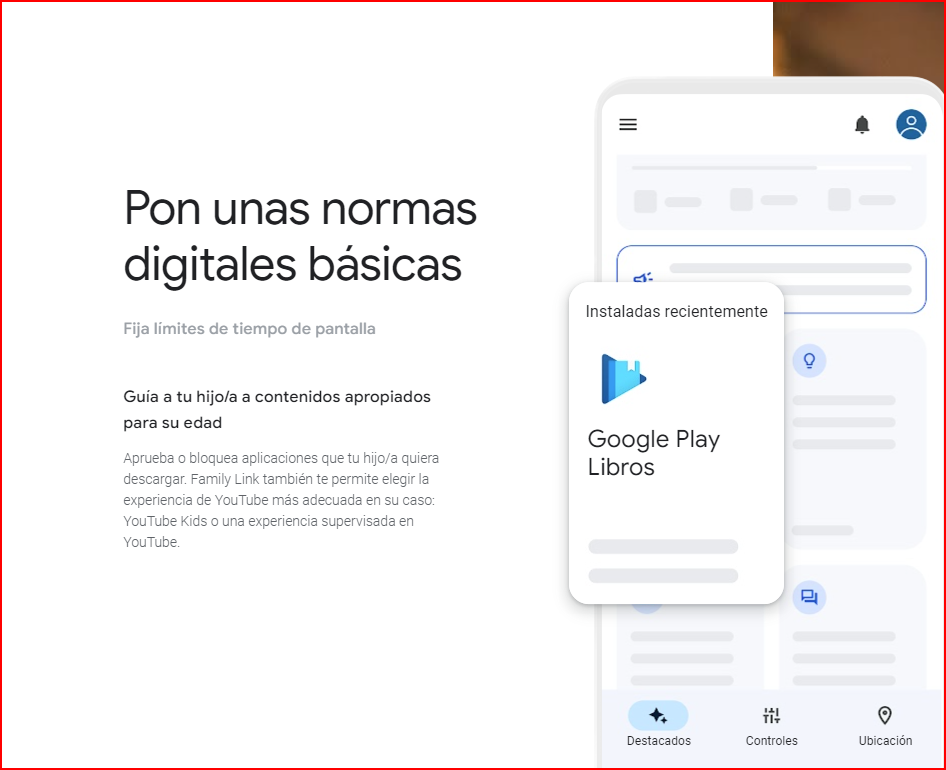
- App and content control with Google Family Link: you can approve or block apps before they’re installed. You can also filter content by age on Chrome, YouTube, and the Play Store.
- Remote lock: if it’s time to take the phone away, how to lock devices with Google Family Link is as easy as pressing a button from your app. It locks instantly.
There’s one feature many people overlook: real-time location. It’s not a professional GPS tracker, but it tells you where the device is. Useful if your child goes to school alone and you want to make sure they arrived.
Android vs iOS: where Family Link falls short
With Google Family Link for Android and iOS, the experience isn’t the same. On Android you have total control: you lock the device, prevent them from uninstalling apps, restrict purchases. On iPhone, Apple doesn’t let Google do all that, so you depend on iOS’s own restrictions (Screen Time). Family Link on iOS is more useful for supervising the Google account than for controlling the device itself.
My advice: if you’re going to buy a phone for your child and want to use Family Link to its full extent, go with Android. A Pixel, a mid-range Samsung, or any Android with Google Play. With an iPhone you’ll be wrestling with two control systems that don’t communicate all that well with each other.
Child safety with Google Family Link: what it does and doesn’t do
Child safety with Google Family Link is real, but it’s not a magic shield. It blocks inappropriate content in Google apps, but not on all websites or in third-party apps. If your child uses an alternative browser or a messaging app you don’t control, they can get around the filter.
Plus, kids learn fast. I’ve seen 10-year-olds creating new accounts with another email to get around Family Link. Don’t underestimate their ingenuity. That’s why, rather than relying solely on the tool, talk to them. Family Link is a support, not a digital nanny.
How to manage your children’s accounts with Google Family Link
From your app you can see all supervised accounts, change settings, add another child, or even remove supervision when they come of age. That last one is irreversible: if you remove supervision, you won’t be able to reactivate it without creating a new account.
You can also manage purchases: approve or reject paid downloads, view spending history, and limit spending on the Play Store. A detail many parents appreciate to avoid nasty surprises with microtransactions.
Is it worth it in 2026?
Yes, especially if you have Android. It’s free, it integrates well, and it gives you a level of control that no other free app matches. On iOS it’s more limited, but if your child uses a Google account, it still makes sense. That said, don’t expect it to be foolproof: kids find ways around it. Use it as one more layer of supervision, not the only one.
And remember: the best parental control tool is trust and communication. Family Link helps, but it doesn’t replace a good talk about what they’ll find on the internet.