

Post actualizado el día octubre 26, 2026 by DeiviSanzPlay
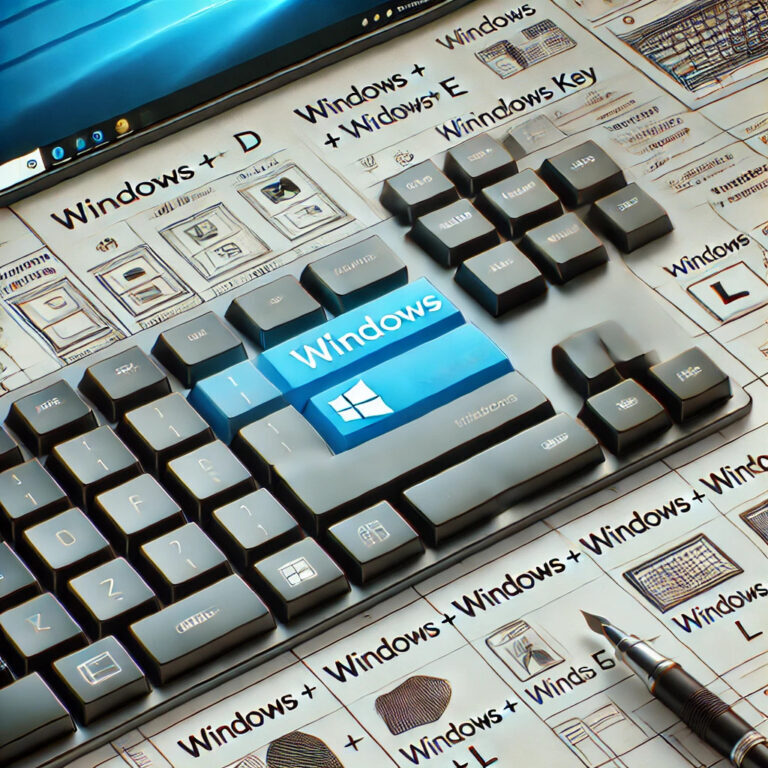
Most people treat the Windows key like a glorified «Start» button. They tap it, the menu pops up, they click something, done. That’s like buying a Ferrari and only using it to reverse out of the driveway. The Windows key shortcuts hiding on your keyboard are the fastest productivity upgrade you’ll ever get for free, and once you learn them, going back to mouse-clicking feels like walking through mud.
I’ve spent years testing these combos on Windows 10 and Windows 11, and the difference between someone who knows them and someone who doesn’t is brutal. One person finishes a task in five seconds, the other in thirty. Multiply that by a hundred daily actions and you’ve got hours of your life back every month.
The Windows Key Is Not What You Think It Is
Let’s kill the myth right now: the Windows key is not just for opening the Start menu. It’s a modifier key, like Shift or Ctrl, and that means it unlocks an entire layer of the operating system that most users never touch. Microsoft built dozens of keyboard shortcuts with the Windows key specifically for people who hate wasting time.
Think about your typical day. You switch between browser tabs, open folders, check email, minimize windows to peek at the desktop, lock your PC when you go grab coffee. Every one of those actions has a shortcut. Every single one.
The catch? Nobody teaches this stuff. It’s not in the manual, it’s not on the box, and schools don’t cover it. You either stumble onto it or someone shows you. Consider this your shortcut to the shortcuts.
Windows + D and Windows + M: The Instant Desktop Trick
You’ve got seventeen windows open and you need to see your desktop right now. The mouse approach: minimize, minimize, minimize, minimize, minimize. The keyboard approach: Windows + D. One tap, everything’s gone. Tap it again, everything comes back exactly where it was. It’s the digital equivalent of sweeping everything off your desk into a drawer and then pulling it back out.
Windows + M does something similar but with a catch: it minimizes windows without the toggle-back behavior. Honestly, I use Windows + D almost exclusively because the toggle is worth its weight in gold. Windows + M is the older, clunkier cousin that Microsoft kept around for nostalgia.
Split Your Screen Without Touching the Mouse
If you’re not using Windows + Left Arrow and Windows + Right Arrow, you’re working harder than you need to. This combo snaps the active window to one half of your screen. Press it while a window is focused, and it slides perfectly into place. Then click another window and snap it to the other side.
Yes, you can also do this by dragging windows to the edges, but the keyboard version is faster and works even when your mouse is acting up. Windows 11 added Snap Layouts (hover over the maximize button to see them), but the classic arrow-key snapping is still the quickest way to organize two side-by-side apps.
Pro tip: once a window is snapped, press Windows + Up to maximize it or Windows + Down to restore it. Those three keys turn window management into a reflex.
The Shortcuts Nobody Talks About
Everyone knows Windows + E opens File Explorer and Windows + L locks your PC. Those are the starter pack. The real gold is in the combos that solve specific, annoying problems.
- Windows + V opens your clipboard history. Not just the last thing you copied, but the last 25 things. If you’ve never turned this on, Windows will prompt you the first time you press it. Do it. Copying multiple items and pasting them later is a game changer for writers, coders, and anyone who fills out forms.
- Windows + Shift + S launches the Snipping Tool so you can grab a specific part of your screen. No more Print Screen and pasting into Paint like it’s 2008.
- Windows + Tab opens Task View, which shows every open window in a grid. On Windows 11 you also get virtual desktops here — set one up for work and one for personal stuff so you stop mixing them.
- Windows + X opens the Quick Access menu, the same one you get by right-clicking the Start button. Device Manager, Terminal, Settings, disk management — all one keystroke away.
- Windows + R brings up the Run box. Type «cmd» for Command Prompt, «calc» for the calculator, «msconfig» for startup settings. It’s the fastest launcher on Windows.
- Windows + number keys opens whatever app is pinned to that position on your taskbar. Windows + 1, Windows + 2, and so on. If you pin Chrome to slot one and Slack to slot two, you can switch apps without ever looking down.
Why These Shortcuts Actually Matter
There’s a real cognitive cost to reaching for the mouse every time you want to do something. It’s small, but it adds up. Every mouse trip forces your brain to reorient: where’s the cursor, where’s the target, click, move back to the keyboard. Keyboard shortcuts skip that entire loop. Your fingers stay put, your eyes stay on the screen, and your focus doesn’t break.
That’s why power users, developers, and anyone who lives inside a PC for eight hours a day swears by Windows key keyboard shortcuts. It’s not about showing off. It’s about reducing friction on the hundred tiny actions that make up a workday.
The best productivity tool on your computer isn’t an app you download. It’s the keyboard you already own.
Windows 11 vs Windows 10: What Changed
Most of the classic combos work identically on both versions. Windows + D, Windows + E, Windows + L, Windows + Tab, Windows + arrow keys — all the same. Windows 11 added a few extras worth knowing: Windows + Z opens Snap Layouts directly, and Windows + A now opens Quick Settings instead of the old Action Center.
One thing that trips people up: Windows + S used to open Cortana. On Windows 11 it opens the search bar, which is far more useful. And if you’ve disabled Cortana entirely, the search shortcut still works fine.
How to Actually Build the Habit
Reading a list of Windows key shortcuts does nothing. You have to burn them into muscle memory. My advice: pick three. Only three. Use them exclusively for a week, even when the mouse would be faster. Windows + D, Windows + E, and Windows + L are a good starting trio because you use them constantly.
After a week, add three more. Windows + Left/Right, Windows + V, and Windows + Shift + S. In a month you’ll have nine shortcuts running on autopilot, and you’ll wonder how you ever functioned without them.
Don’t try to memorize all fifteen at once. That’s how people give up. Slow, deliberate repetition beats cramming every time.
The Full List, Ready to Copy
- Windows + D: Show or hide the desktop instantly.
- Windows + E: Open File Explorer.
- Windows + L: Lock your computer immediately.
- Windows + M: Minimize all open windows.
- Windows + Tab: Open Task View and virtual desktops.
- Windows + Left/Right Arrow: Snap the active window to half the screen.
- Windows + Up/Down Arrow: Maximize or restore a window.
- Windows + R: Open the Run dialog.
- Windows + I: Open Windows Settings.
- Windows + P: Project to a second display.
- Windows + S: Open the search bar.
- Windows + Shift + S: Take a custom screenshot.
- Windows + V: Open clipboard history.
- Windows + X: Open the Quick Access menu.
- Windows + U: Open accessibility settings.
- Windows + 1, 2, 3…: Launch the app pinned to that taskbar slot.
Print this out, tape it to your monitor, and start using them. In two weeks, half of them will be reflexes and you’ll be moving through Windows faster than everyone around you. That’s not marketing fluff — that’s just what happens when you stop fighting your own computer.


