Post actualizado el día octubre 26, 2026 by DeiviSanzPlay
Most people download some sketchy screenshot app the moment they switch to a Mac. Total waste. macOS has been shipping a full screenshot toolkit for years, and it’s free, built in, and faster than anything you’ll grab from the App Store. Here’s how to screenshot on Mac without installing a single thing.
I’ll be blunt: if you’re paying for a screenshot tool on macOS, you’re being played. The native shortcuts do 95% of what 99% of people need, and they’re instant — no launch, no splash screen, no login nag.
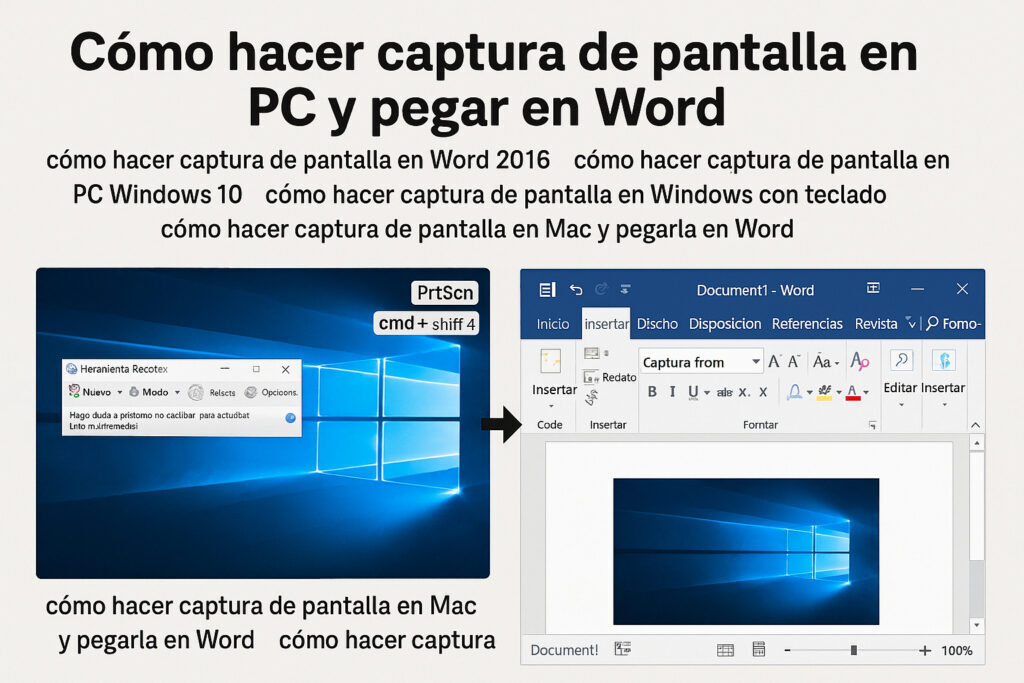
The one shortcut you need to memorize: Shift + Command + 3
This is the granddaddy of Mac screenshot shortcuts. Hit Shift + Command + 3 at the same time and in under a second your entire screen is captured. The file drops straight onto your desktop as a PNG, named with the date and time so you don’t get duplicates.
That’s it. No menu, no dialog, no confirmation. If you want to screenshot on Mac fast and dirty, this is your move.
Select just part of the screen: Shift + Command + 4
Full-screen grabs are usually overkill. What you actually want is a region. Press Shift + Command + 4 and your cursor turns into a crosshair. Click and drag to draw a box around exactly what you want. Release, done — the cropped capture lands on your desktop.
Two pro tips nobody tells you:
- Hold Space after pressing the shortcut to move the selection box around without redrawing it.
- Hold Option while dragging to resize symmetrically from the center of your selection.
If you want to capture a single window with its drop shadow (the clean look you see in tutorials), hit Shift + Command + 4, then press Space, and click the window. The crosshair becomes a camera icon. Click, and you’ve got a pixel-perfect window shot.
Skip the desktop clutter: send screenshots straight to clipboard
Desktop clutter is the number one complaint I hear about Mac screenshots. Easy fix: add Control to any of the shortcuts above.
- Control + Shift + Command + 3 — copies the whole screen to the clipboard.
- Control + Shift + Command + 4 — copies a selected region to the clipboard.
Nothing touches your desktop. You paste it into Slack, Notes, an email, whatever. This is the workflow to screenshot on Mac when you’re sharing something quick with a coworker.
Shift + Command + 5 unlocks the real control panel
This is where most people realize they never needed a third-party app. Press Shift + Command + 5 and a floating toolbar appears at the bottom of the screen with every capture option in one place:
- Capture Entire Screen
- Capture Selected Window
- Capture Selected Portion
- Screen recording — record the full screen or a selected region
- Options — set a 5 or 10 second timer, choose where files are saved (Desktop, Documents, Clipboard, Mail, Messages, Preview), and toggle the mouse cursor visibility in recordings
If you make tutorials, record bug reports, or walk clients through software, this panel alone replaces half the screen-recording tools people pay monthly for. The timer is gold: it gives you a few seconds to open a menu or hover over the right element before the capture fires.
Where do Mac screenshots go? (And how to change it)
By default, every screenshot on Mac lands on your Desktop. That’s fine until your desktop looks like a war zone. Open the Shift + Command + 5 panel, click Options, and pick a different save location — a dedicated Screenshots folder in Documents, for example.
You can also hold Control to route it to the clipboard instead of any folder. Between those two, you never have to deal with stray PNGs again.
Screenshot file format matters too. macOS saves as PNG by default, which is lossless but heavy. If you need JPGs, you have to change the default type via Terminal — but honestly, unless you’re archiving thousands of captures, PNG is fine.
Common mistakes people make with Mac screenshots
Three things trip up almost everyone:
- Pressing the keys at slightly different times. Shift, Command, and the number have to be down together. If your keyboard has media keys on the top row, use the number keys on the main board.
- Forgetting Control for clipboard. If your desktop is filling up with Screenshot files, you forgot to add Control.
- Not knowing about Space in the crosshair mode. This one shortcut saves so much redrawing time it’s almost criminal that Apple doesn’t advertise it.
On Macs with the Touch Bar, the screenshot button appears automatically when you press Shift + Command + 4 — an extra convenience if you’re on older hardware.
Do you ever need a third-party screenshot app?
Rarely. If you need scrolling captures of an entire webpage, annotated arrows and blur effects baked in, or cloud upload with shareable links, then yes — tools like CleanShot X or Shottr add real value. For everyone else, the built-in shortcuts are faster, private, and free forever.
My stance: learn Shift + Command + 3, 4, and 5 cold before you install anything. Nine out of ten people who «need» a screenshot app just haven’t learned the native ones. The native ones also keep working offline, don’t need permissions, and don’t phone home with your screen contents — which, in 2026, counts for something.
Bottom line: macOS has shipped a complete screenshot and screen recording suite for free since OS X Mojave. Use it.