Post actualizado el día September 27, 2026 by DeiviSanzPlay
If you’ve ever wondered <a title=”How to connect Alexa to LG TV” href=”https://www.chusmeando.com/informatica-y-tecnologia/alexa/como-conectar-alexa-a-tv-lg/”>how to connect Alexa to WiFi, you’re about to discover the secret to making your smart assistant come alive and become the center of your connected home. I’m going to guide you step by step, but with a touch of mystery, because, believe me, connecting Alexa to WiFi may seem simple, but there are hidden details that make all the difference.
I recommend checking out this article, it’s interesting: What is attachment and what types of attachment exist.
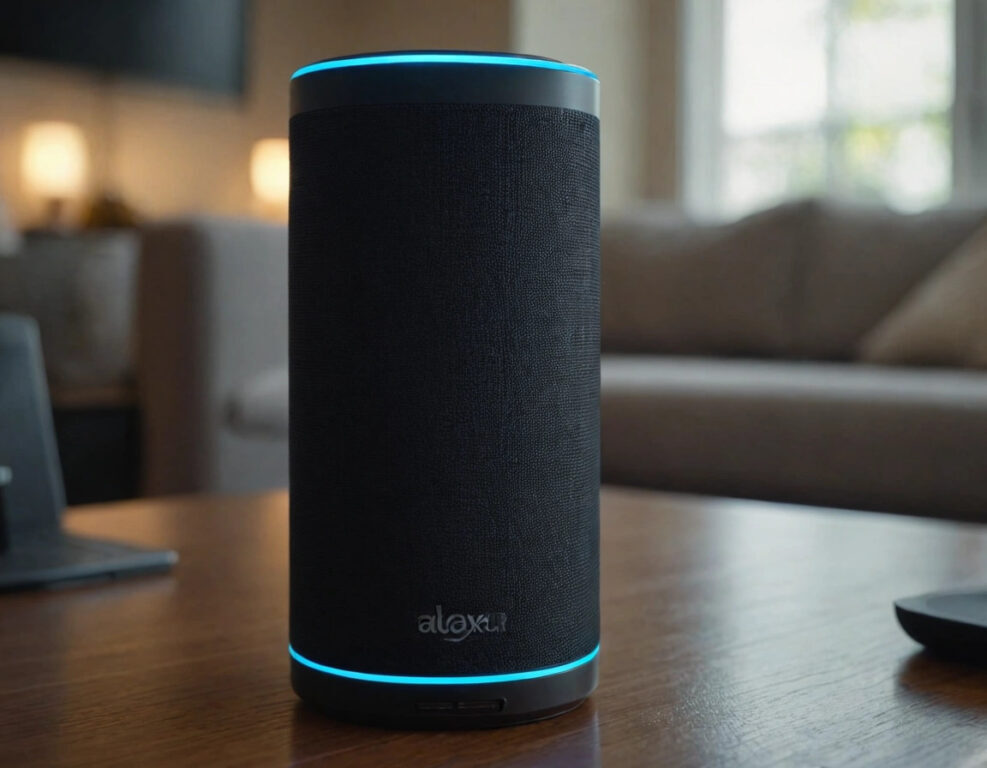
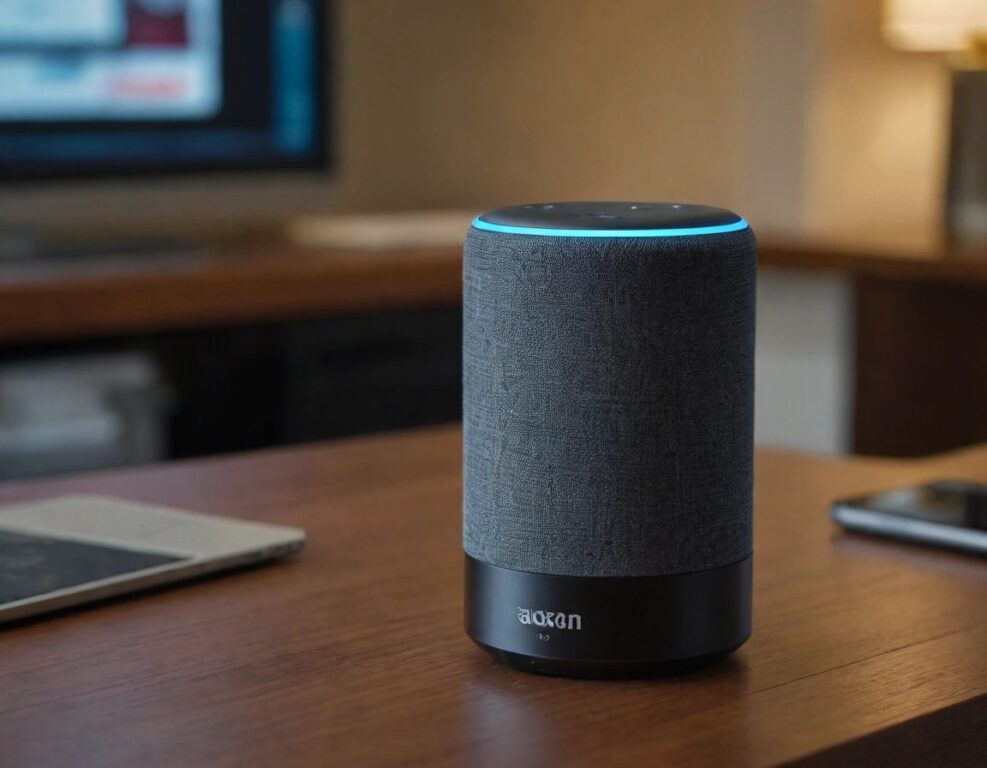
First, make sure you have everything ready. You’ll need the Alexa app installed on your phone and, of course, a stable WiFi network. Once you open the app, tap on Devices and select your Echo device. But here’s the interesting part: did you know that Alexa enters a special mode called setup mode? If you don’t see the orange light ring on your Echo, you’ll have to press the action button for a few seconds until it appears. It’s as if you were activating its secret mode.
When Alexa is in setup mode, go back to the app and follow the instructions to choose your WiFi network. <a title=”How to change the password of wifi to alexa” href=”https://www.chusmeando.com/informatica-y-tecnologia/alexa/como-cambiar-la-contrasena-de-wifi-a-alexa/”>Make sure you enter the correct password, because if you don’t, the process could fail and you’ll be left wondering what went wrong. But here’s a trick: if your WiFi is dual-band (2.4 GHz and 5 GHz), choose the 2.4 GHz one to avoid compatibility issues. Alexa can be picky with networks, and this detail can save you headaches.
Now, imagine everything goes well, but suddenly Alexa won’t connect. What to do? Sometimes, it’s necessary to restart your router or even unlink and relink your device in the app. This step, although simple, usually solves many connectivity mysteries.
But wait, the story doesn’t end here. If you change your WiFi network or password, you’ll have to repeat the process. Don’t worry, it’s not as complicated as it seems. You just have to go into the app, select your device, and choose Change WiFi network.
And what if you’re using Alexa on a public or guest network? This is where things get more interesting. Some networks require additional authentication, and Alexa might not work properly. In that case, you can use a hotspot from your phone as a temporary solution.
Finally, once connected, Alexa will be your best ally. You’ll be able to ask her to control your smart devices, play music, or tell you the weather. But it all begins with that magical moment of connecting her to WiFi.