

Post actualizado el día September 28, 2026 by DeiviSanzPlay
Have you ever forgotten your password for your WiFi and been left not knowing what to do? We’ve all been through that moment of desperation when we need to recover our WiFi passwords, but we don’t know how to do it. Don’t worry, all is not lost! Today I’m going to show you how to view passwords WiFi easily and quickly so you’ll never be left disconnected again.
I recommend checking out this interesting article: How You Can Decorate Your Christmas Tree and Make It Stand Out in Your Living Room.
Whether because you forgot your password or because you want to recover your WiFi passwords from a previous device, knowing how to do it is key to keeping your network secure and making sure all the devices connected to your WiFi work without problems. Even if you’re not a tech expert, viewing WiFi passwords is a simple process accessible to everyone. Sometimes, when you change your router or restore your Internet connection, you may need to access your WiFi password to set up your devices again. Fortunately, there are easy ways to view the WiFi passwords stored on your computer or even on your mobile phone.
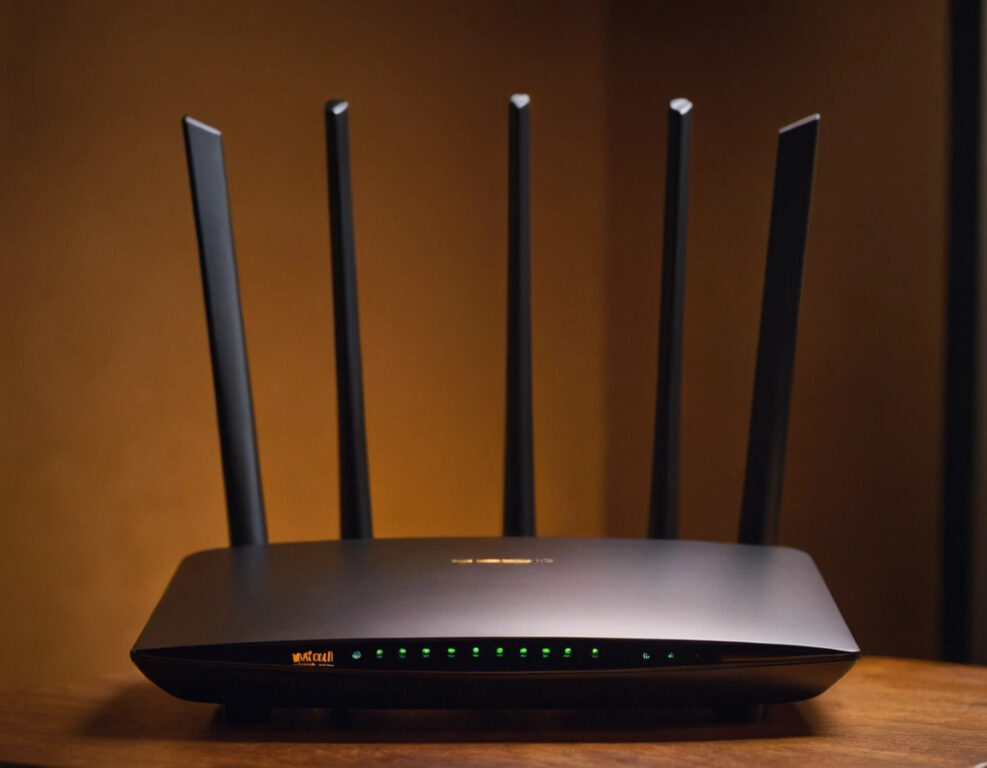
When it comes to recovering your WiFi passwords, there are several places where you can find the information. In many cases, your WiFi router has the default password on a label attached to its back. But if you changed it and don’t remember it, don’t worry, because there are other ways to access that information.
Here I’ll explain how to view the WiFi passwords stored on your PC, so you don’t have to guess your password again or, worse yet, reset your router. If you’ve ever wondered how to recover your WiFi passwords on your computer, this step-by-step guide is all you need. First, access your PC’s network settings. On your computer, click the network icon (usually in the bottom right corner of the screen) and select “Open network and Internet settings.” Then, select “Status” and click “Network and Sharing Center.” Here you’ll be able to see all the WiFi networks your computer has previously connected to. Next, click on the name of the WiFi network whose password you want to see. This will take you to a network properties window, where you’ll see a button that says “Wireless Properties.” To view the password, check the “Show characters” box under the “Security” section. Done! Now you can see the WiFi password stored on your computer. This is a quick trick to view WiFi passwords without having to restart your entire system. It’s as easy as that.
If you’re not at your computer and need to recover your WiFi password from a phone, there are ways to do that too. Depending on your device’s operating system, the steps will vary, but in general, here I’ll explain how to view WiFi passwords on Android and iOS. On Android, go to “Settings” and select “Wi-Fi.” In the list of available Wi-Fi networks, select the network you’re connected to. If your device has root privileges or you’re the administrator, you may be able to see the password directly in the “Network details” section. On iOS, accessing WiFi passwords directly isn’t as straightforward. You’ll need to sync your device with iCloud Keychain, where the passwords are stored, and use a Mac to access them. Although iOS doesn’t offer a way as direct as Android or PC, you can always use iCloud to view the passwords of WiFi networks you’ve previously connected to.
What should you do if you can’t view the WiFi passwords stored on your device? Well, the most obvious solution is to reset your WiFi router to factory settings. On the back of your router, you’ll generally find a small reset button that you can press to return it to its initial configuration. When you reset the router, the default values are the ones that came in the box, and the WiFi password is normally found on an attached label. If this label is no longer available or if you prefer not to reset everything, you can also access your router’s administration panel through a specific IP address (usually something like 192.168.1.1) to change the password directly.
It’s essential that you protect your WiFi with a secure password. If you ever need to recover your WiFi passwords, make sure the password isn’t easy to guess. If you use a common or simple password, it’s much easier for intruders to access your network. Make sure to choose a long, unique, and complex password. This not only helps protect your WiFi connection, but also the security of your devices and the privacy of your network.
If the above methods don’t work for you, don’t worry, you can always use third-party programs designed specifically to recover WiFi passwords. There are applications that scan your device and allow you to view the WiFi passwords saved on your network. Although it’s always important to be careful when using external tools, since some may not be safe.
Once you recover your WiFi passwords, make sure to save them in a safe place. Password management applications, such as LastPass or 1Password, can help you store and protect your password so you never have to go through this process again.
Knowing how to view WiFi passwords on your devices is easier than it seems. Whether from your PC, mobile phone, or even by accessing your router, you can recover your WiFi passwords in a matter of minutes. And best of all, once you’ve recovered them, you can make sure your network is secure and ready to be used by all the devices you want to connect. Remember that keeping your WiFi protected is key to preventing intruders and guaranteeing your network’s privacy. If you ever forget your password, don’t worry, now you know how to recover it. Connect and browse without worries!



