Post actualizado el día September 27, 2026 by DeiviSanzPlay
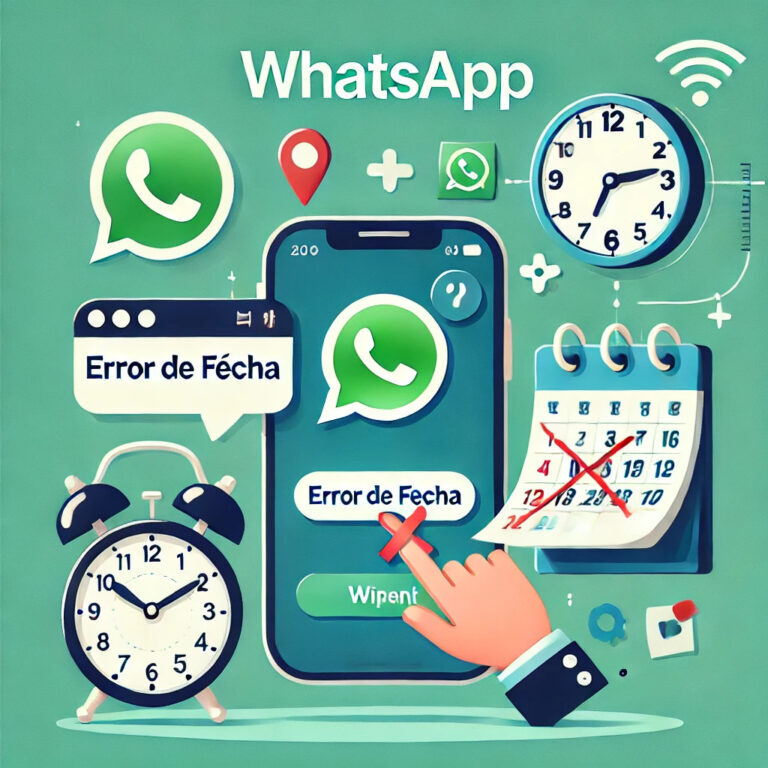
whatsapp/”>whatsapp/aprende-a-descargar-audios-de-whatsapp-en-mp3-desde-cualquier-dispositivo/”>dispositivo-android-iphone-pc-mac-y-online-incluye-apps-y-conversor-a-mp3/” title=”🎧 How do I download a WhatsApp audio? Let me explain it simply 😎”>How do I fix the error/”>error of date/”>date on WhatsApp? Friend, let me guess: you tried to open WhatsApp, but instead of your chats/”>chats, you got that annoying message saying “incorrect date error“. Does that sound familiar? It’s as if WhatsApp were playing with you, but don’t worry, we’re going to solve it together here. And believe me, you don’t need to be a tech genius to do it.
I recommend you check out this interesting article: Why did TikTok become so popular so fast?.
First, let me ask you something: does your phone have the correct date and time/”>time? This is one of the most common reasons behind the problem/”>problem of date synchronization on WhatsApp. Sometimes, a small mismatch in the settings can make the app think you’re living in another year (or even another dimension!). The first thing you should do is go to your device settings and make sure the “set date and time automatically” option is enabled.
Now, here comes the intriguing part: did you know it’s not always your device’s fault? In some cases, trick saves you hours when switching phones with WhatsApp”>WhatsApp shows the wrong date and time because its own internal synchronization fails. It’s rare, but it happens. If you’ve already checked your settings and the error persists, try restarting your phone. Yes, it sounds basic, but sometimes, a simple restart fixes the date error on WhatsApp.
Oh, and let’s not forget something important: the internet connection. Is your network working properly? Because if you’re disconnected or have a weak signal, WhatsApp may fail to sync the time with its servers. Make sure you’re connected to a stable Wi-Fi network or, failing that, turn on your mobile data to see if that solves the problem.
On the other hand, if your device is a bit older or doesn’t have the necessary updates, you might be seeing that message for an even more specific reason: WhatsApp needs your operating system to be up to date. It’s time to check if there’s any pending update for your phone. This will not only fix the date configuration error on WhatsApp, but also improve your device’s overall performance.
Have you ever wondered what happens if you reinstall WhatsApp? Sometimes, that’s the key to solving the incorrect date error on WhatsApp. Before doing so, make sure to back up your chats. Then, uninstall the app, download it again from the official store, and set it up again. This will force the app to sync correctly with your device’s time and date.
Finally, if everything else fails, there might be a problem with your phone’s permissions. Make sure WhatsApp has access to the date and time settings on your device. You can check this in the app permissions section of your phone’s settings.
So there you have it, friend: a complete guide to fixing the date error on WhatsApp. It’s much easier than it seems, right? Now, tell me, are you going to sit with your arms crossed or are you going to take control and fix this problem once and for all? I’m sure that with these steps, you’ll be back to your chats in less time than you imagine.