Post actualizado el día September 27, 2026 by DeiviSanzPlay
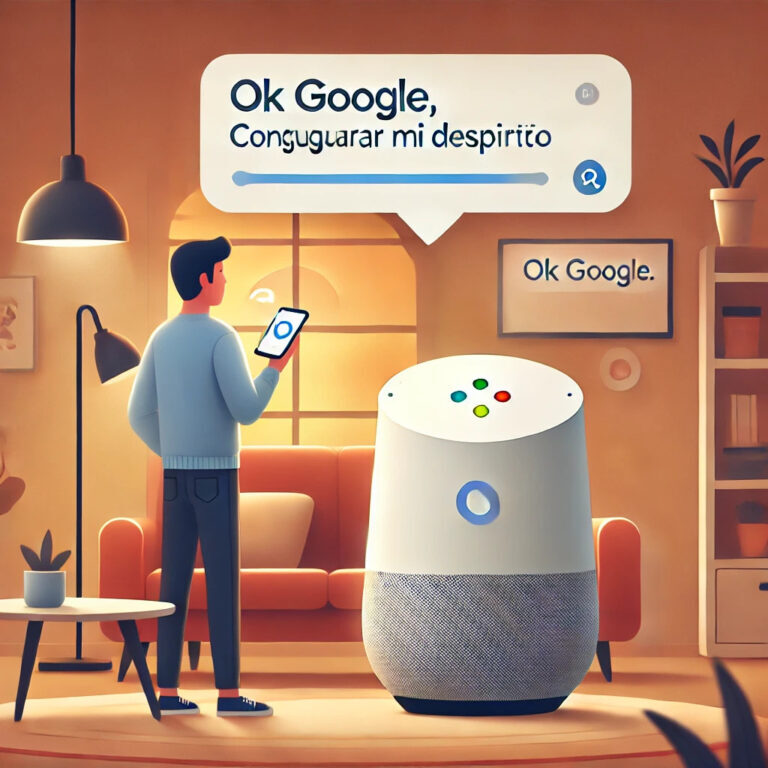
Have you ever had it happen that when you try to set up your device with Google Assistant, you run into an unexpected error? Yes, that moment when you say “Ok Google, set up my device,” but something isn’t right. What should you do when you get an <a href="https://www.chusmeando.com/informatica-y-tecnologia/error-google/como-quitar-error-virus-detectado-google-chrome-el-misterio-que-debes-resolver/” title=”How to remove the virus detected error in Google Chrome: The mystery you must solve”>error in Google Assistant syncing or the device simply doesn’t respond to commands?
I recommend you check out this interesting article: What the iPhone 16E is like, Review, Price and Definitive Analysis of this phone..
The frustration can be enormous, but don’t worry, I’m going to tell you all the steps you should follow to fix this problem. So, if you’re ready to resolve that error and regain control of your Google Assistant, keep reading, because not only am I going to give you the solution, but I’ll also help you discover some tricks to avoid future issues.
The first thing you should know is that Google Home is a very robust device, but like any technology, it can sometimes have certain problems with the connection. If you’re receiving an error message when you try to set up your device, the simplest solution is to restart your Google device. By restarting the device, you can eliminate temporary errors that might be interfering with its operation.
If Google Assistant doesn’t respond to commands, it may be a sign that something has failed in the connection between your device and the Wi-Fi network. One of the first actions you should take is to make sure your device is connected properly. If it isn’t, try resetting the Google Assistant settings to their default values. This can fix many of the most common errors and let you start over.
And if the problem persists? Well, in that case, you’ll probably have to perform an update on the device. To do so, update your Google device to make sure you have the latest available software version. Setting up Google on Android can also be a challenge, but generally, if you follow the official instructions, you’ll be able to do it without any problems. Don’t forget that, if you have any issue, you can always check the official Google support page.
Sometimes, the problem lies with the Wi-Fi network. If the device can’t sync properly with the network, I recommend you check your Wi-Fi settings. Make sure the signal is strong and stable. If you’re using a 5 GHz network, try switching to a 2.4 GHz network, since many devices have trouble connecting to the faster network.
Now then, let’s suppose none of this works and you still see that error when trying to set up your device. What else can you do? Well, one option is to check your Google account settings. If Google Assistant isn’t properly linked to your account, it could cause problems. In this case, unlink and relink your Google account to your device. This simple step has solved many problems for users.
If all of this seems confusing or complicated to you, don’t hesitate to visit the official Google Home and Google Assistant pages, where you can find detailed guides and important updates that can help you. And if you still can’t find the solution, don’t hesitate to contact Google’s technical support. They are available to help you resolve any connection problem with Google Home.
In short, if you ever run into an error when setting up your device, follow these steps systematically: restart your device, update the software, check the network connection, and make sure Google Assistant is properly linked to your account. And if none of this works, you can always turn to the official pages or Google’s technical support. After all, Google Assistant is designed to make your life easier, and it shouldn’t be a headache.
FAQ: Ok Google set up my device
1. Why can’t I set up my device with “Ok Google”?
If you can’t set up your device with the command “Ok Google set up my device”, it may be due to several reasons. Some of the most common include Wi-Fi connection problems, an incorrect device configuration, or a failure to sync with your Google account. We recommend following these steps: make sure your device is properly connected to the Wi-Fi network, restart your device, and check whether you have the latest software version installed.
2. How do I reset my Google device if I can’t set it up with “Ok Google”?
If when you try to set up your device with the command “Ok Google set up my device” you get no response, one option is to reset it to its factory settings. To do so, look for the reset button on the back of the device (on Google Home, for example), hold it down for about 15 seconds until the device restarts. This will eliminate any temporary errors and let you set up your device from scratch.
3. What should I do if “Ok Google” doesn’t respond during setup?
If the “Ok Google” command doesn’t respond during your device setup, the first thing you should do is check your Wi-Fi network connection. If the signal is weak or unstable, the device may not respond correctly. Also, make sure the device’s microphone is turned on and that Google Assistant is properly linked to your Google account. If everything seems to be in order and it still doesn’t respond, try resetting the device to its original settings.
If when you try to set up your device with “Ok Google” you get the error “Ok Google can’t set up my device”, there may be a problem with your Google account syncing or with the device configuration. Verify that your Google account is properly associated with the device, and also make sure your device is updated with the latest version of the operating system. If the problem persists, check the Wi-Fi network connection and make sure it’s stable.
5. What should I do if my Google Home device doesn’t respond to “Ok Google set up my device”
If Google Home doesn’t respond when you say “Ok Google set up my device”, the microphone may be off or there may be a problem with the connection to your Wi-Fi network. To fix it, open the Google Home app and check your device settings. If the device still doesn’t respond, try restarting it or performing a factory reset. Also make sure the Google Home app is up to date.
6. How can I set up my Google device from the app?
If the voice command “Ok Google set up my device” doesn’t work, you can set it up manually through the Google Home app. Open the app, select your device from the list, and follow the on-screen instructions to complete the setup. Make sure the Wi-Fi network you want to connect the device to is available during the process.
7. Is it possible to set up my Google device without using “Ok Google”?
Yes, if for some reason the “Ok Google” command isn’t working, you can set up your Google device manually. To do so, open the Google Home app and select the device you want to set up. From there, you can follow the instructions to complete the setup, adjust the Wi-Fi network, and link your Google account without needing to use voice commands.
8. Why can’t I connect my Google device after trying to set it up with “Ok Google”?
If after trying to set up your device with the command “Ok Google set up my device” you can’t connect it to the Wi-Fi network, check that the Wi-Fi password is correct. Also make sure your device is compatible with the Wi-Fi network, since some devices may have issues with 5 GHz networks. If everything seems fine and you still can’t connect the device, try restarting it or performing a factory reset.
9. Where can I find more help if I have problems with “Ok Google set up my device”?
If after following the steps mentioned above you still can’t set up your device with “Ok Google”, we recommend consulting Google’s official support resources. You can visit the Google Home help page or the Google Assistant section to get more information and solutions to common problems. You can also contact technical support if the problem persists.
10. What should I do if my device still gives an error after trying to set it up with “Ok Google”?
If the error persists despite having tried all the previous solutions, it is advisable to contact Google’s technical support. They will be able to diagnose the problem and offer you a more personalized solution. To contact support, you can visit Google’s official website and follow the instructions to get help.